> ## Documentation Index
> Fetch the complete documentation index at: https://docs.bloodydash.xyz/llms.txt
> Use this file to discover all available pages before exploring further.
# Setup
GUI is available only on Windows. We highly suggest to use the bot only on server to be able to achieve the best performance
* Dashboard: use [this link](https://dashboard.blood-solutions.com/) to download
* Discord: use /gui-download-url command in any channel
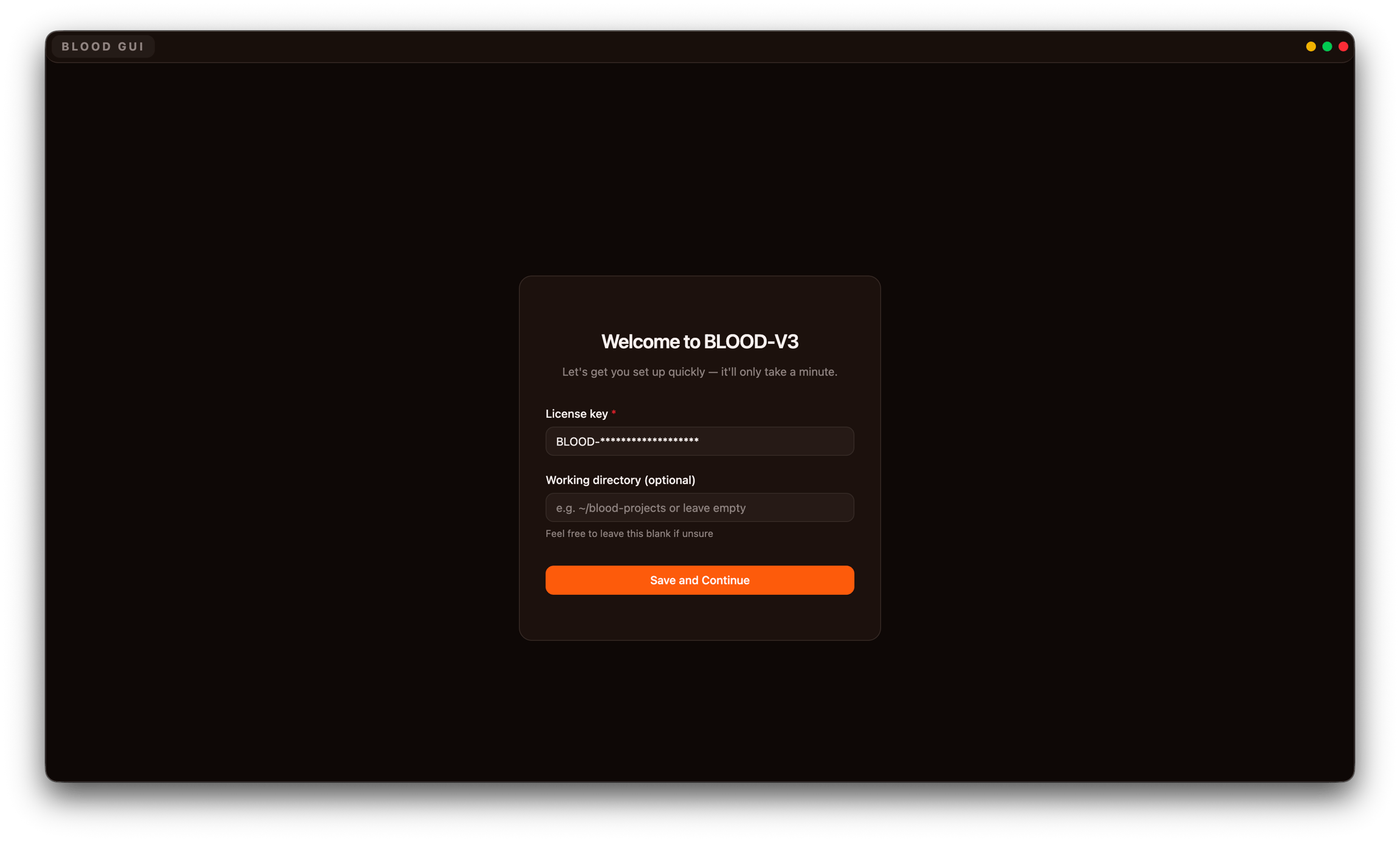
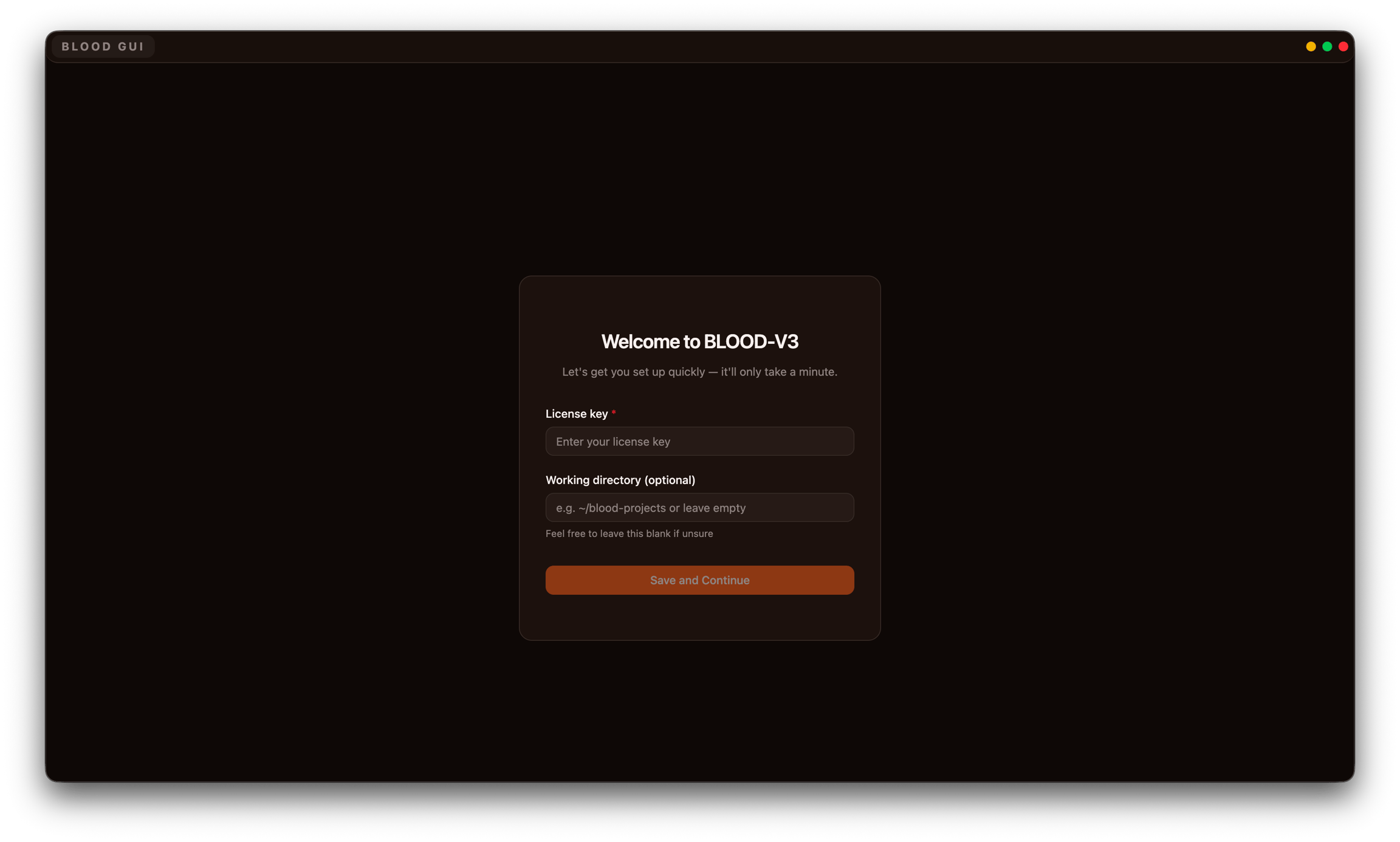 You can get your **license-key** from dashboard or discord-bot (use **/me** command in any channel)
If its your first time launching BLOOD - we recommend to not touch the **Working Directory** section. If you are migrating from CLI or want to use both you can simply copy the directory path of blood folder and paste there (the GUI will automatically load tasks, strategies and presets)
You can get your **license-key** from dashboard or discord-bot (use **/me** command in any channel)
If its your first time launching BLOOD - we recommend to not touch the **Working Directory** section. If you are migrating from CLI or want to use both you can simply copy the directory path of blood folder and paste there (the GUI will automatically load tasks, strategies and presets)
 **If you have error pop-up during installation do following:**
1. Download CLI version from Blood dashboard
2. Navigate to `bloodv3` folder located in `C:/Users//`
3. Open `gui` folder and place the downloaded CLI file inside it.
After completing these steps:
* Restart the **GUI**
* Paste your key
* Leave the **Working Directory** field empty
All files will be saved in `C:/Users//bloodv3/gui`
**If you have error pop-up during installation do following:**
1. Download CLI version from Blood dashboard
2. Navigate to `bloodv3` folder located in `C:/Users//`
3. Open `gui` folder and place the downloaded CLI file inside it.
After completing these steps:
* Restart the **GUI**
* Paste your key
* Leave the **Working Directory** field empty
All files will be saved in `C:/Users//bloodv3/gui`
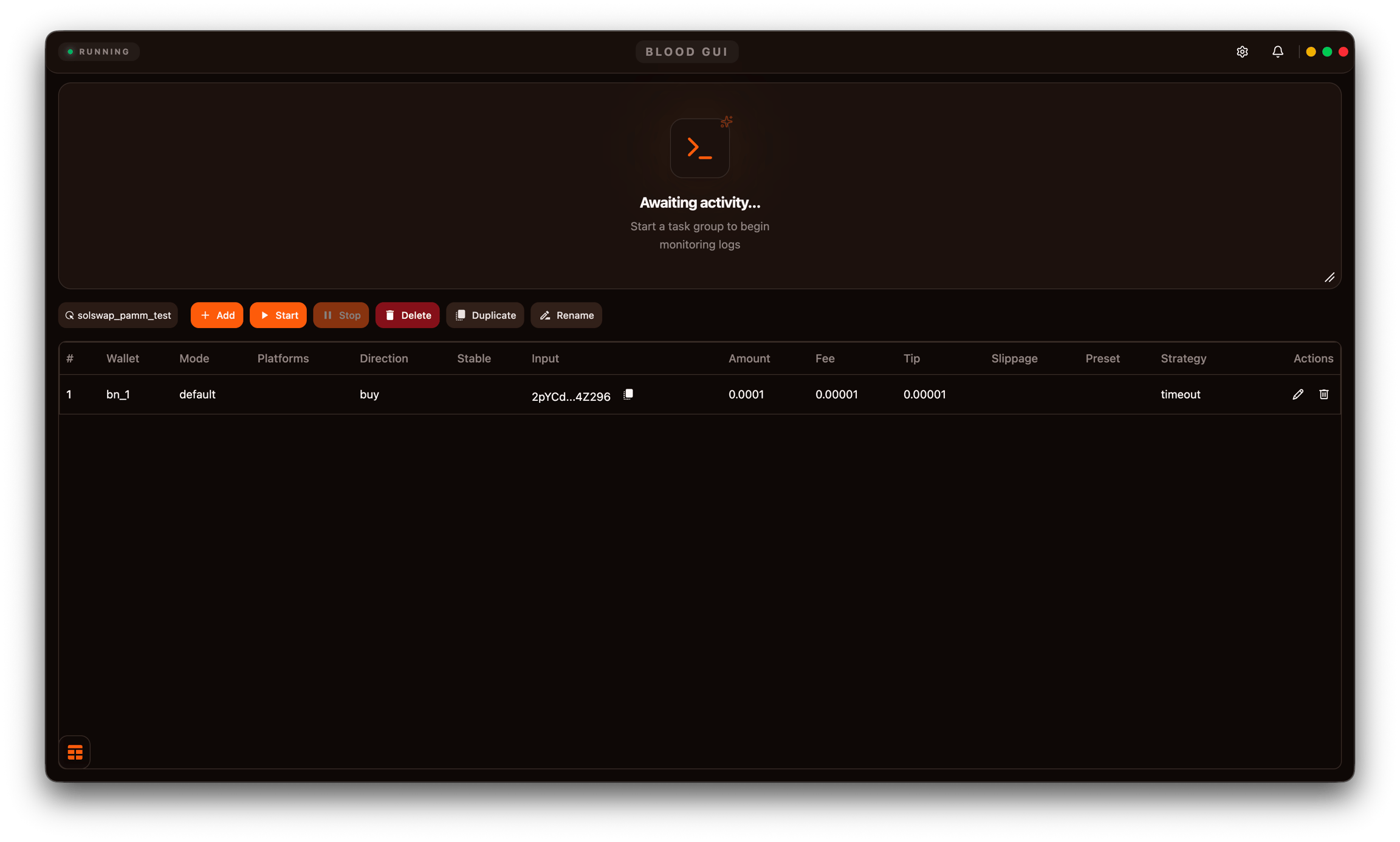 On your first startup we recommend to jump into [RPC Management](/rpc) and setup config. This is crucial step to make sure everything runs smooth!